


Lev Gorelik

Plan and Play

A mobile app for soccer coaches: session plans, one schedule for several teams, and attendance.

Solo designer: research, UX, UI and testing with coaches. 2024

Coaches lose time on planning

Coaches who run several teams spend a lot of time on scheduling and session prep. I set out to put session plans, the schedule and attendance in one app, so more of that time goes to coaching.

  • UX Design
  • UI Design
  • Research
  • Prototype
  • Testing
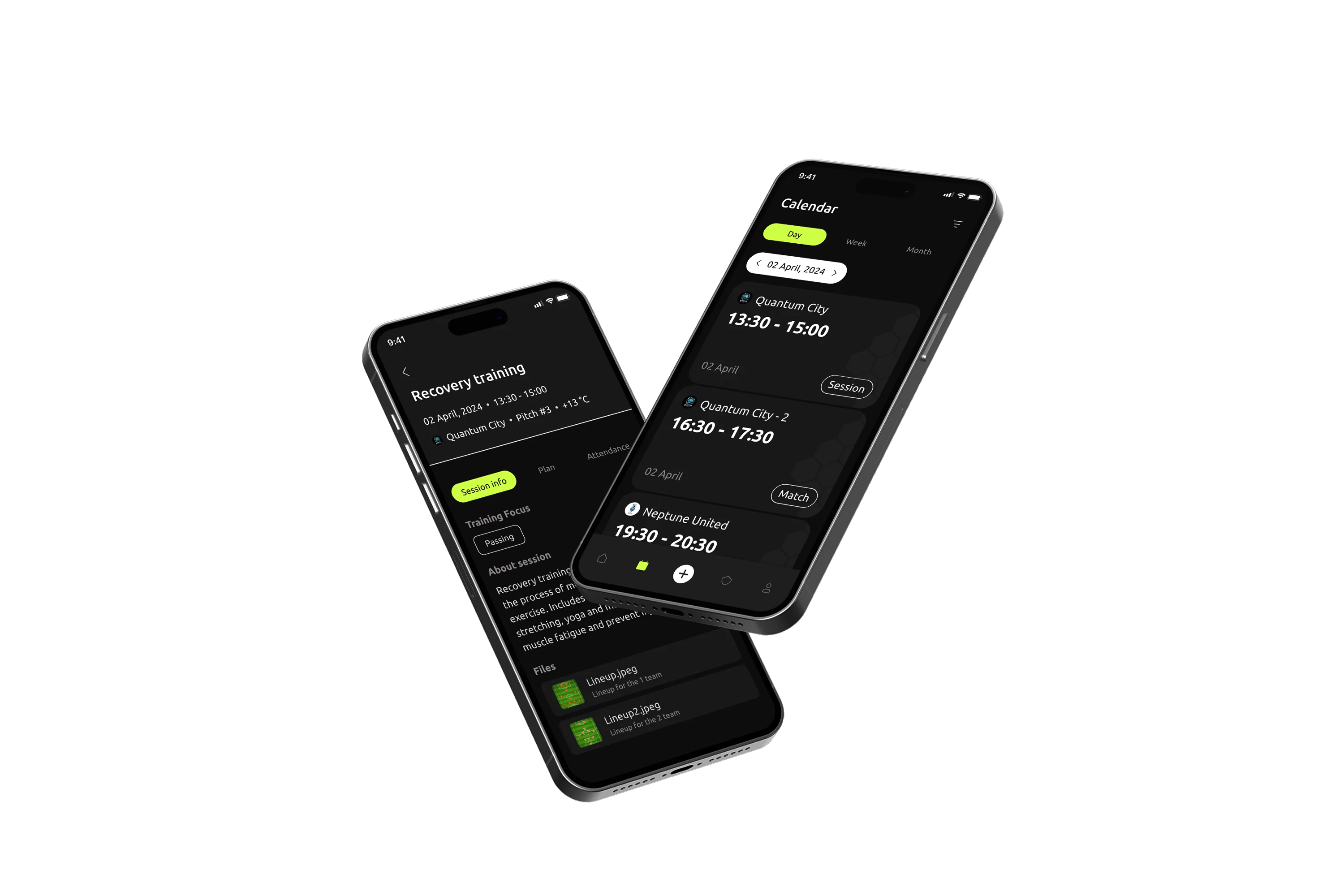
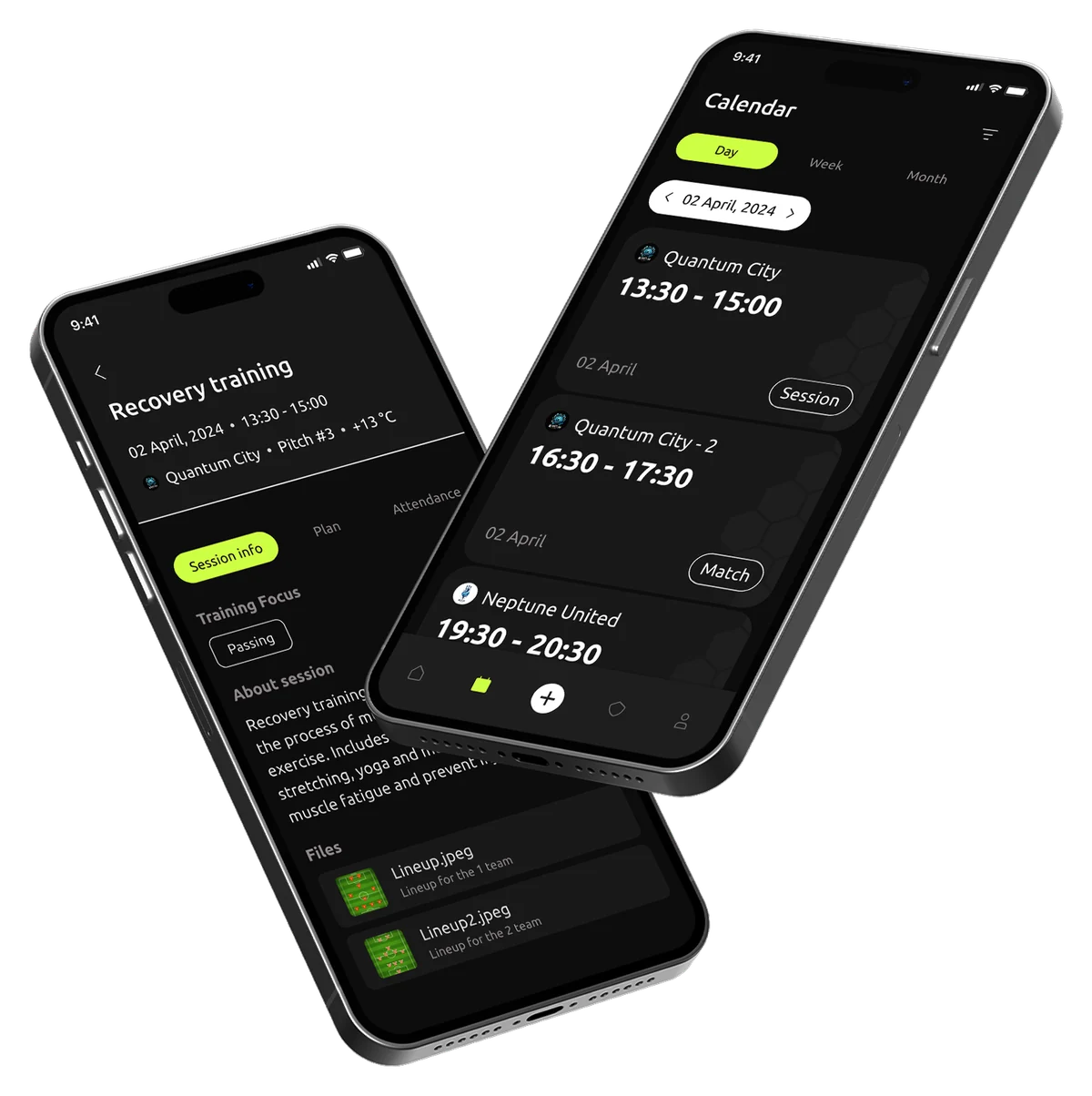
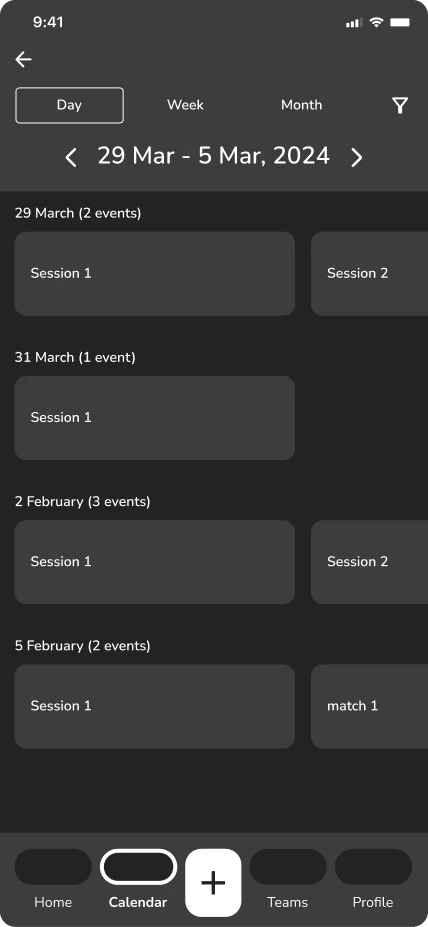
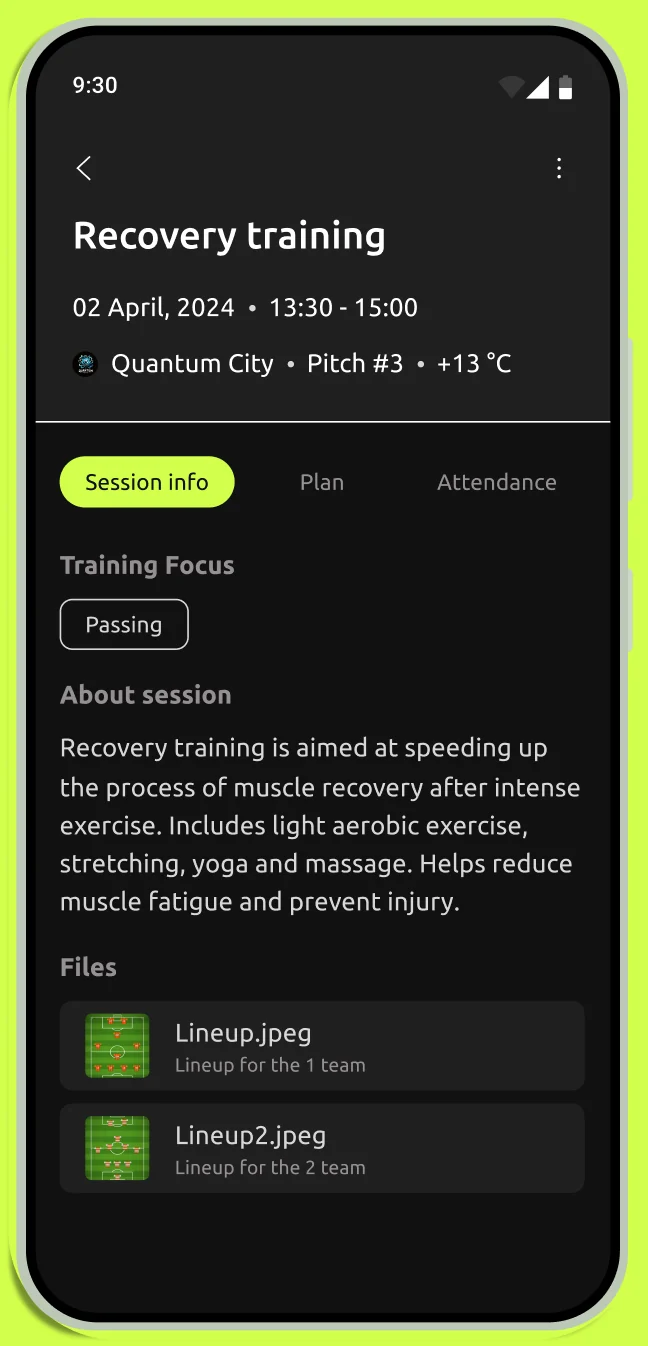
Two screens of Plan and Play: a recovery training session with its focus and files, and the day view of the calendar with three events Two screens of Plan and Play: a recovery training session with its focus and files, and the day view of the calendar with three events

Timeline

From market research to a clickable prototype, on my own.

  1. Discovery
  2. Design
  3. Delivery
  4. Research
  5. Competitor Analysis
  6. User Research
  7. UI/UX Design
  8. Prototyping
  9. Testing
  10. Handoff

Research

Competitive market analysis

I looked at existing apps for managing soccer teams: how they handle planning and scheduling, and how easy they are to use.

Key insights

  • Too many features

    Most apps try to do everything, and the basics get harder to reach.

  • Not built for phones

    Few of them work well on a phone, where coaches check their schedule.

  • Scheduling first

    What coaches need first is a simple scheduler.

User research

7 interviews with coaches

I interviewed seven coaches. Their answers became the empathy map, the personas, the jobs to be done and the journey maps.

  1. Empathy Map

    What coaches think and feel while planning.

  2. Personas

    Two types of coach to design for.

  3. JTBD

    The tasks a coach has to get done.

  4. Customer Journey Maps

    Each task step by step, and where it gets stuck.

In the coaches’ words

The biggest issue is the limited availability of fields... often leads to less than ideal training times.

It's vital to have a reliable method for recording attendance because there are times when a new player comes in on a trial basis, and after a few sessions, it becomes challenging to remember if we've discussed joining fees or not. An easy attendance feature would help manage these situations seamlessly.

A simple way to plan sessions would really streamline our prep time.

Quick session plans would be awesome. Less prep time means more time for coaching.

Personas

The detailed planner

Plans each session in detail and wants the schedule to be exact.

JTBD

To create training schedules for multiple teams.

The attendance keeper

Keeps the team’s calendar and cares most about attendance: who came, and who is still on trial.

JTBD

To monitor attendance of regular players and those on trial.

What the interviews added

I started with a calendar. The interviews added two more features.

Coach's Calendar

Sessions and matches for every team, by day, week or month, quick to change.

Training session planning

Coaches asked for a faster way to prepare. A session is built from drills, each with a short description and files, and a past session can be copied.

Attendance tracking

Coaches need to see who came to each session, including players on trial, so questions like joining fees don't get lost after a few weeks.

Customer Journey Map

I mapped each main task, such as creating a session, step by step: what the coach does, what they expect, and where they get stuck.

target
steps
desired result
difficulties
and barriers
Create a training session
  1. Start creating an event
  2. Selecting a team that participates in the event
  3. Selecting event type (training/match/other)
  4. Adding basic information (date, time)
  5. Adding additional information (name, description, location, etc.)
  6. Displaying a workout on a schedule
  1. Open event creation window
  2. The desired command is selected
  3. The event type is selected, it is clear what it means
  4. Quickly select date and time
  5. Added information that may be important in the future
  6. The user sees that the training appeared in the schedule at the correct time
  1. Can't find a button for this function
  2. It is difficult for the user to find his team
  3. Event type descriptions are unclear or confusing
  4. Inconvenient time and date selection interface
  5. There is no way to indicate critical information (training location)
  6. The user does not understand whether the workout was saved
satisfied 210-1-2
importance 321
target
steps
desired result
difficulties
and barriers
Checking the schedule for next week
  1. Open schedule
  2. Check current schedule
  3. Selecting the required schedule parameters (time, teams, etc.)
  4. Check schedules after changing parameters
  5. Adding additional information (name, description, location, etc.)
  6. Displaying a workout on a schedule
  1. The schedule is easy to open
  2. The user sees the schedule for the required dates
  3. Easy to customize schedule
  4. The user sees only relevant information
  5. Added information that may be important in the future
  6. The user sees that the training appeared in the schedule at the correct time
  1. More than 1-2 actions to open the schedule screen
  2. An irrelevant schedule opens, it’s unclear how to set it up
  3. There are no necessary parameters, the setup process is complicated, you have to configure it again every time
  4. What is displayed is not what the user needs
  5. There is no way to indicate critical information (training location)
  6. The user does not understand whether the workout was saved
satisfied 210-1-2
importance 321

Screen structure

Five sections in the bottom bar. An event opens the same screen from Home, Calendar and the team calendar.

Home

  • Upcoming eventsSessions left this week and month, the next one, what comes afteropens Event
  • Empty schedulePoints to the + button

Calendar

  • Day viewopens Event
  • Week viewopens Event
  • Month viewopens Event

New event

  • Event typeSession, match or event. A match also asks for the opponent
  • Session infoDate, time, pitch and focus open pickers
  • Plan
  • New drill

Teams

  • TeamTabs: players, calendar, attendance
  • Players by position
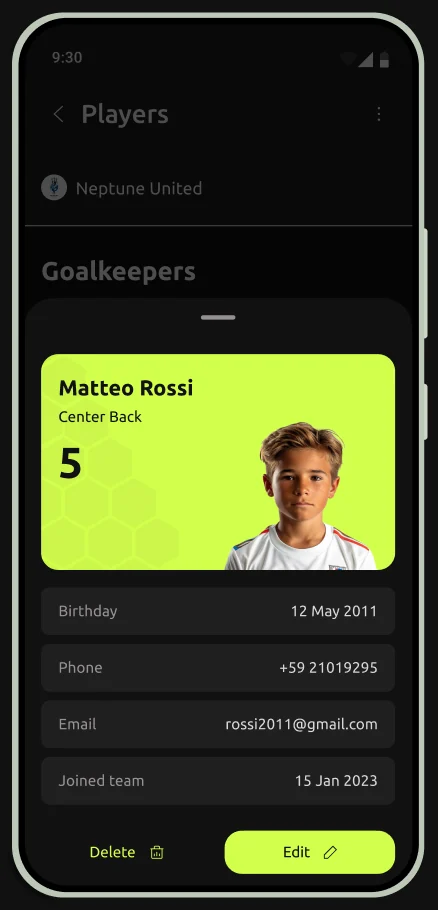
  • Player cardOpens over the list, with edit and delete
  • Team calendaropens Event
  • Attendance by month

Profile

  • Not designed in this case

Event

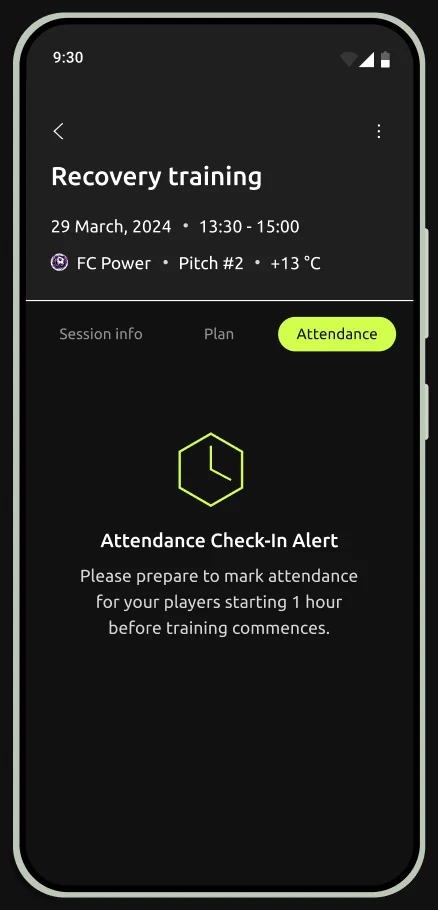
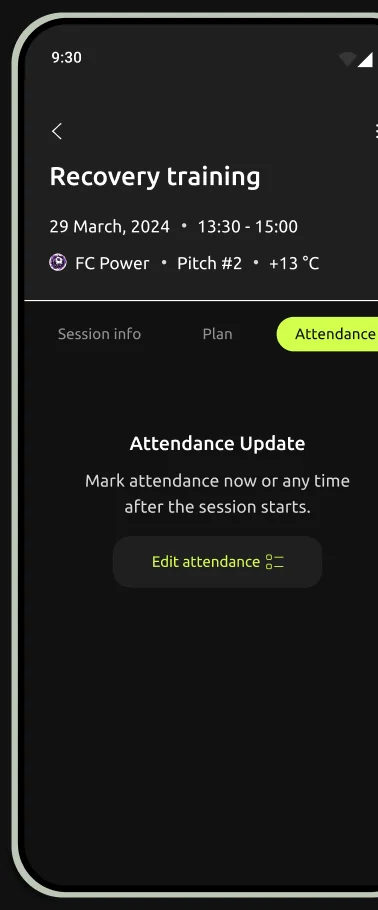
One screen for a session, a match or a team event. Before the session the Attendance tab reminds about check-in, after it shows who came

Session infoPlanAttendance → Edit attendance

Edit · Copy · Delete

Across the app

  • Reminder the day before a session
  • Attendance check-in an hour before
  • Scheduling conflict when two events overlap

User flow

Creating a training session, from the schedule to the attendance after it.

  1. Home or CalendarThe coach starts from the schedule
  2. New eventSession, match or event, a name and the team
  3. Session infoDate, time and focus from pickers. The usual pitch is filled in
  4. PlanDrills for the session, empty at first
  5. From Plan, and backNew drillName, description, files
  6. SaveThe session goes to the schedule
  7. If it overlaps another eventScheduling conflictReschedule goes back to Session info, or keep anyway
  8. If there is no overlap, or keep anywaySavedOn Home and Calendar, with a confirmation
  9. ReminderThe day before: time and pitch
  10. Attendance check-inAn hour before the session
  11. Edit attendanceTick who came and save
  • Start
  • Screen or step
  • Notification

add a drill

back

overlaps another event

keep anyway

no overlap

reschedule

Wireframes

With the journey maps and the screen structure in place, I drew wireframes of the main screens.

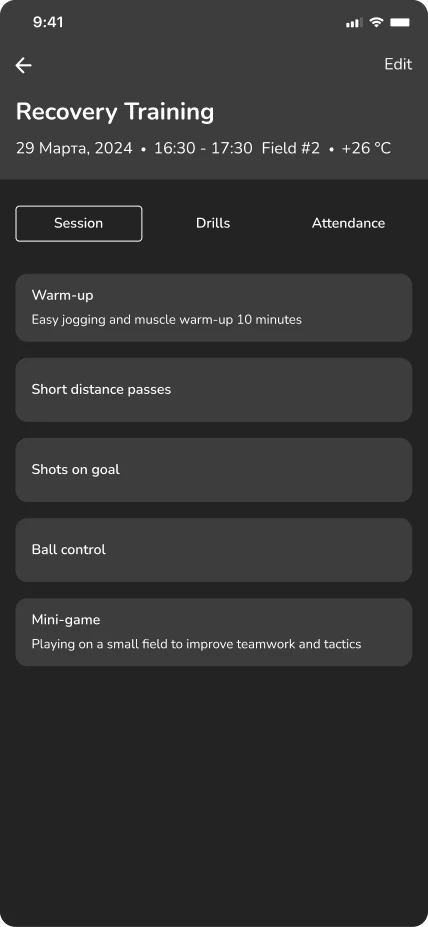
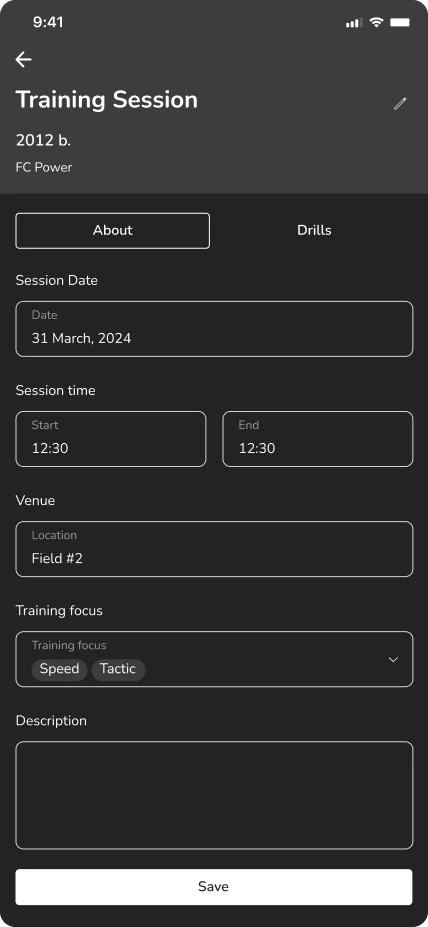
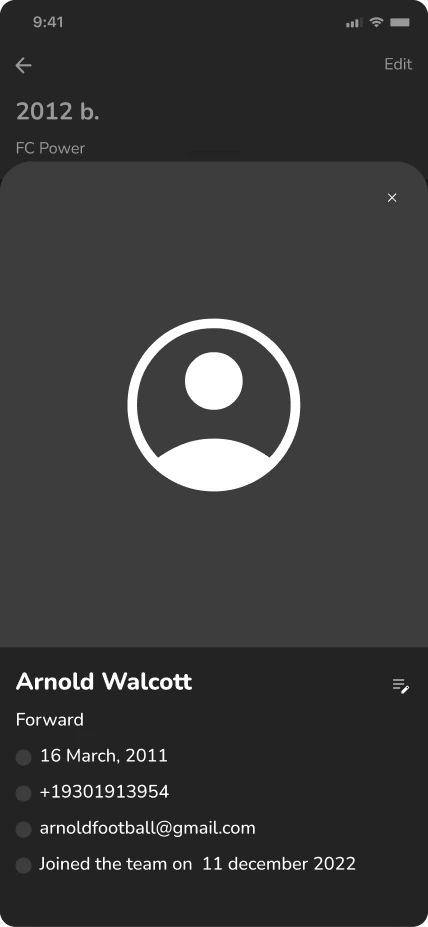
Wireframe: a recovery training with its list of drills Wireframe: the form for a new training session Wireframe: a player's card in the team Wireframe: the week view of the calendar

Styleguide

Color palette

  • 111111
  • 1F1F1F
  • 242424
  • 7D7879
  • 969092
  • D9D7D8
  • FFFFFF
  • 826FF6
  • F66F6F
D2FF4D

Iconography

  • Copy
  • Edit
  • Delete
  • PDF
  • Notifications
  • Filter
  • Add
  • More
  • Time
  • Attach
  • Photo
  • List
  • Players
  • Timer
  • Home
  • Calendar
  • Add, in a circle
  • Favourite
  • Profile
  • Back
  • Timer, small
  • Attach, small
  • Add in a circle, small
  • List, small

Typography

Ubuntu: open shapes that stay readable on a small screen and at a glance.

Ubuntu
  • Aa
  • Bb
  • Cc
  • Dd
  • Ee
  • Ff
  • Gg
  • Hh
  • Ii
  • Jj
  • Kk
  • Ll
  • Mm
  • Nn
  • Oo
  • Pp
  • Qq
  • Rr
  • Ss
  • Tt
  • Uu
  • Vv
  • Ww
  • Xx
  • Yy
  • Zz
  • 123

User testing

What the tests changed

I tested the screens with coaches and changed what didn’t work. Two of the tests:
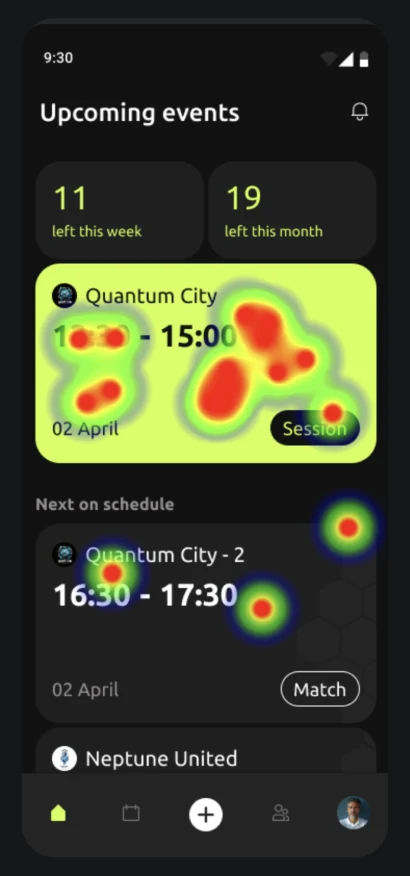
The Upcoming events screen with a heat map of taps: most taps fall on the green card of the next session
Hypothesis
The user correctly identifies which card corresponds to the upcoming event.
Question
Select a card that shows information about the most upcoming event.
Result
82%Got it done 18%Failed
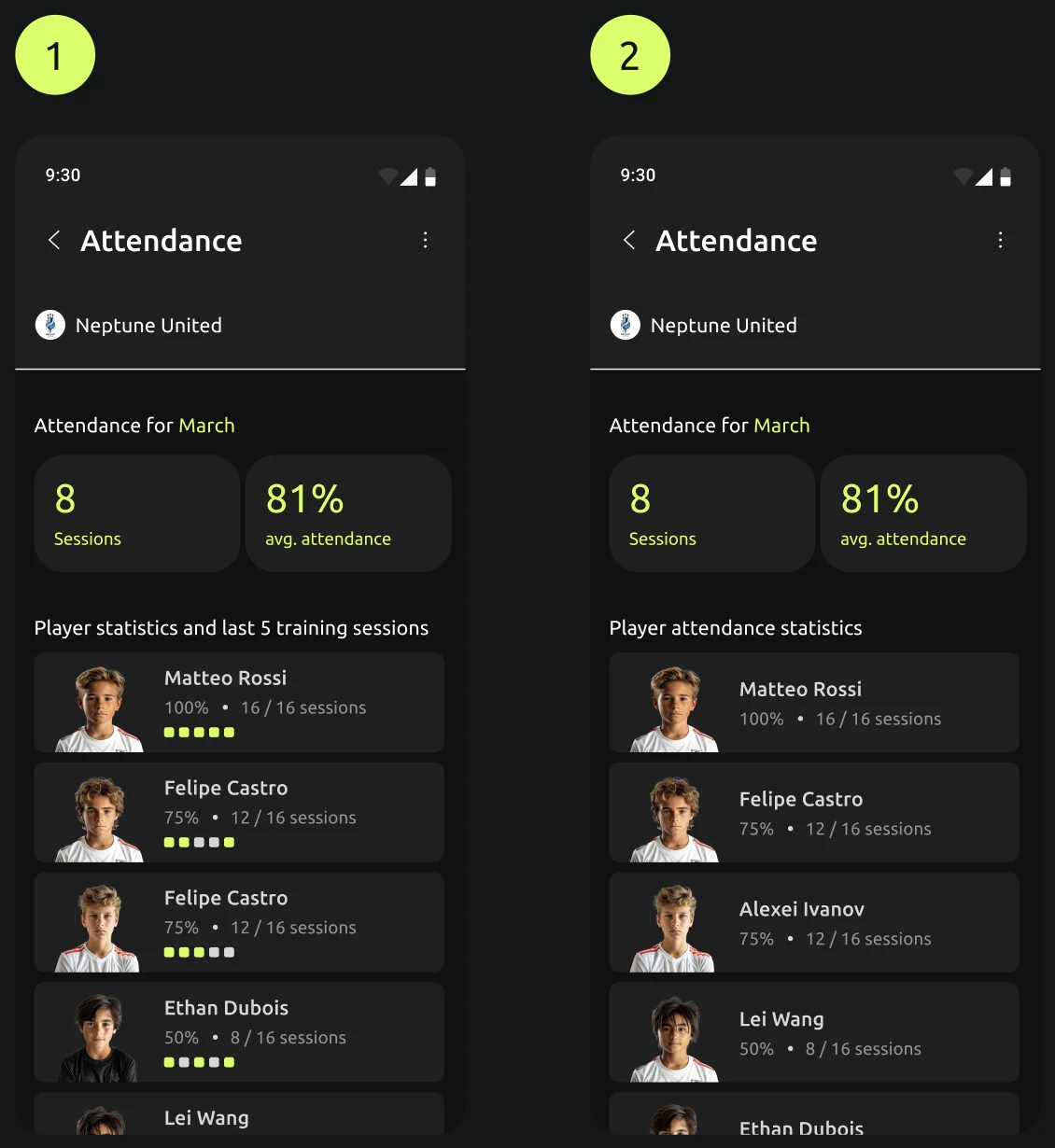
Two versions of the Attendance screen: option 1 shows five small white and green squares under each player, option 2 shows only the percentage and the number of sessions
Hypothesis
The user understands the meaning of the white and green squares (inside the cell with information about the player’s attendance).
Question
What do the white and green squares next to the player’s photo mean (screen 1)?
Result
In several interviews these squares confused coaches.
Changes
The squares are gone; attendance uses option 2.

Design realization

Essential features

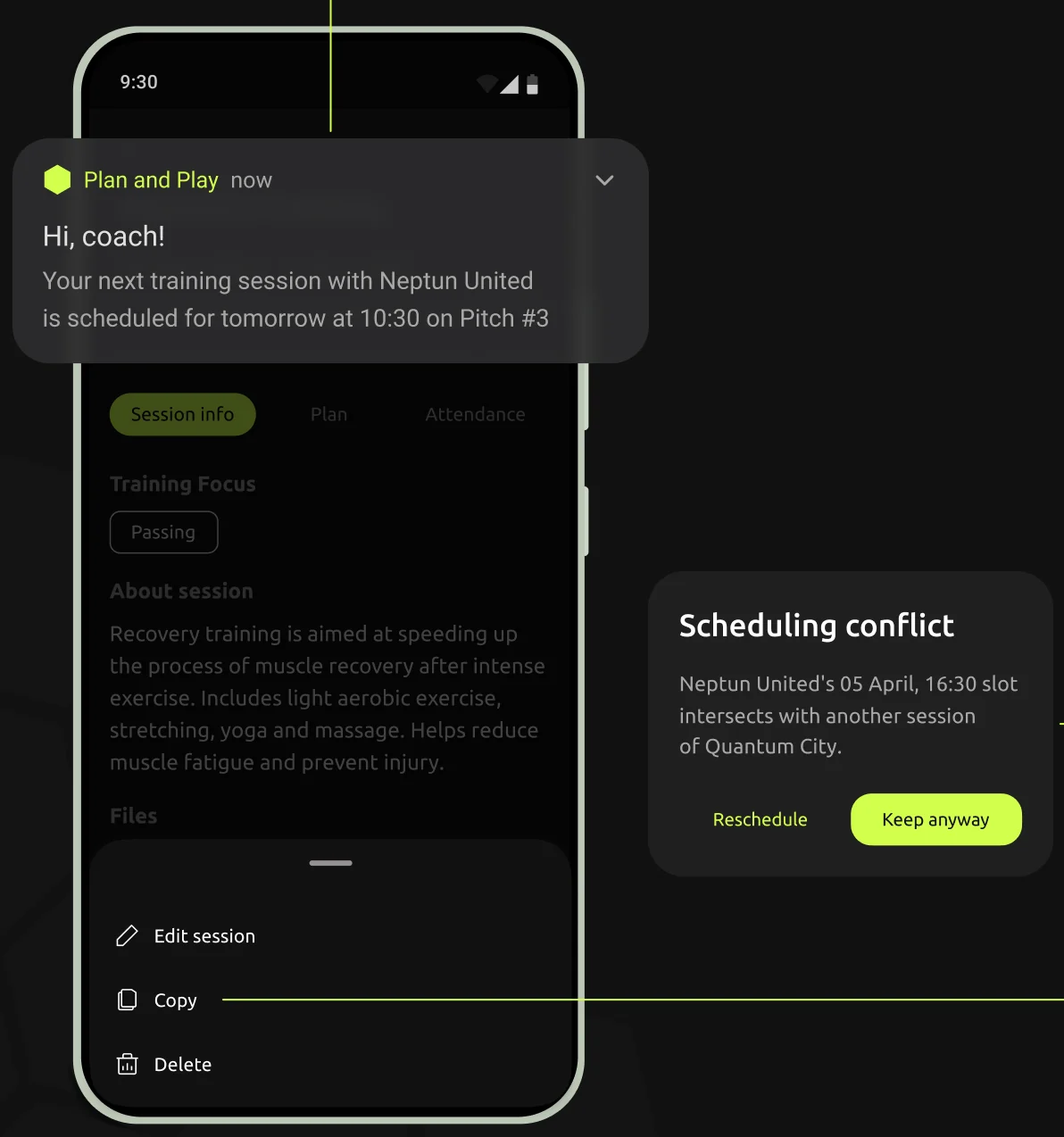
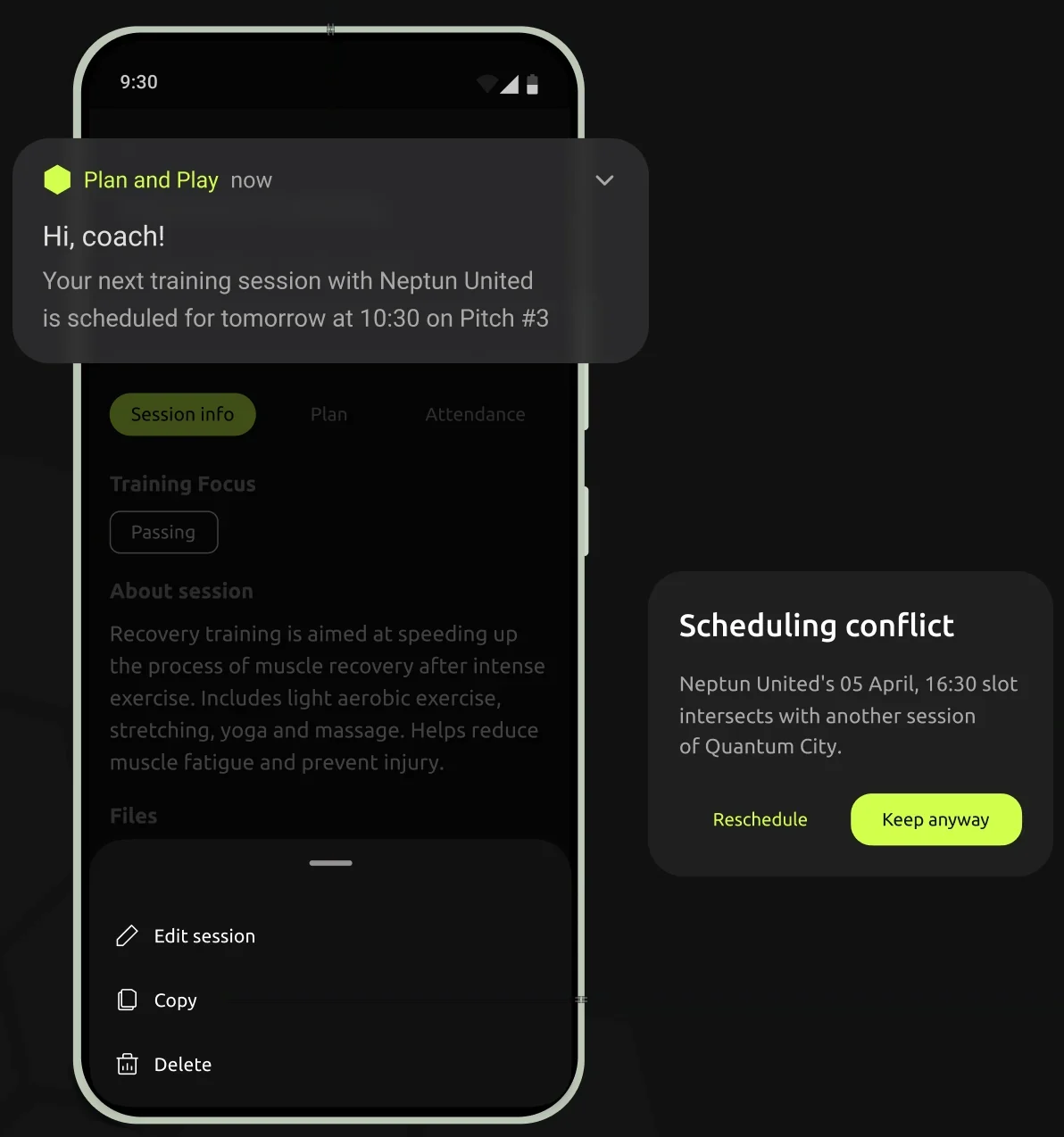
A training session on the phone with three layers over it: a push notification about tomorrow's session, a scheduling conflict dialog with Reschedule and Keep anyway, and a bottom sheet with Edit session, Copy and Delete A training session on the phone with three layers over it: a push notification about tomorrow's session, a scheduling conflict dialog with Reschedule and Keep anyway, and a bottom sheet with Edit session, Copy and Delete

Automated notifications

A reminder the day before a session, and an attendance check-in an hour before.

Schedule alert

If two events overlap, the coach sees it at once and can reschedule or keep both.

Quick session duplication

A past session can be copied and used again.

Calendar
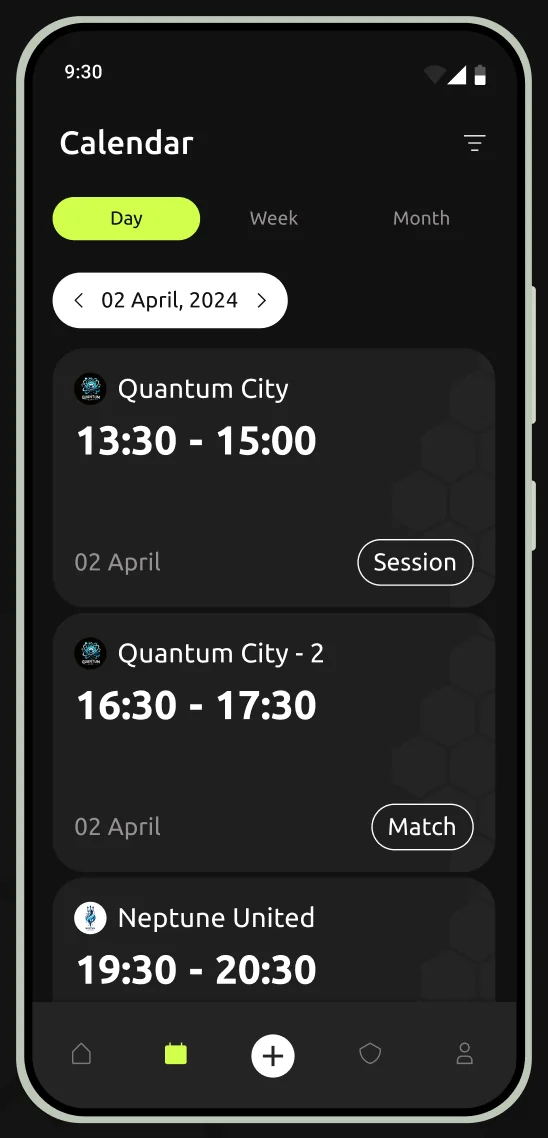
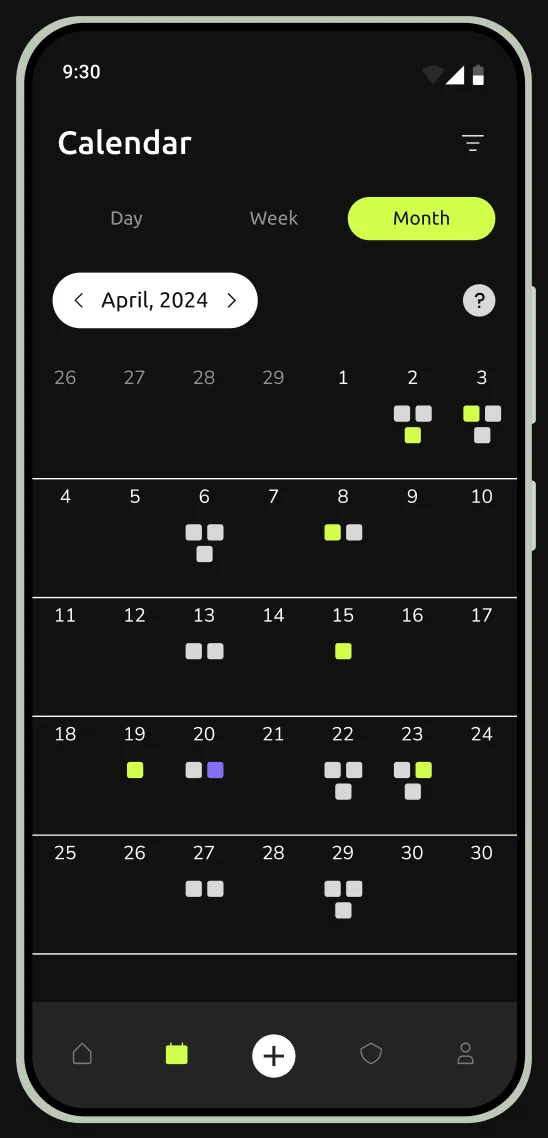
Calendar, day view: three events on 2 April, each with its team, time and type

Daily view

Everything on one day.

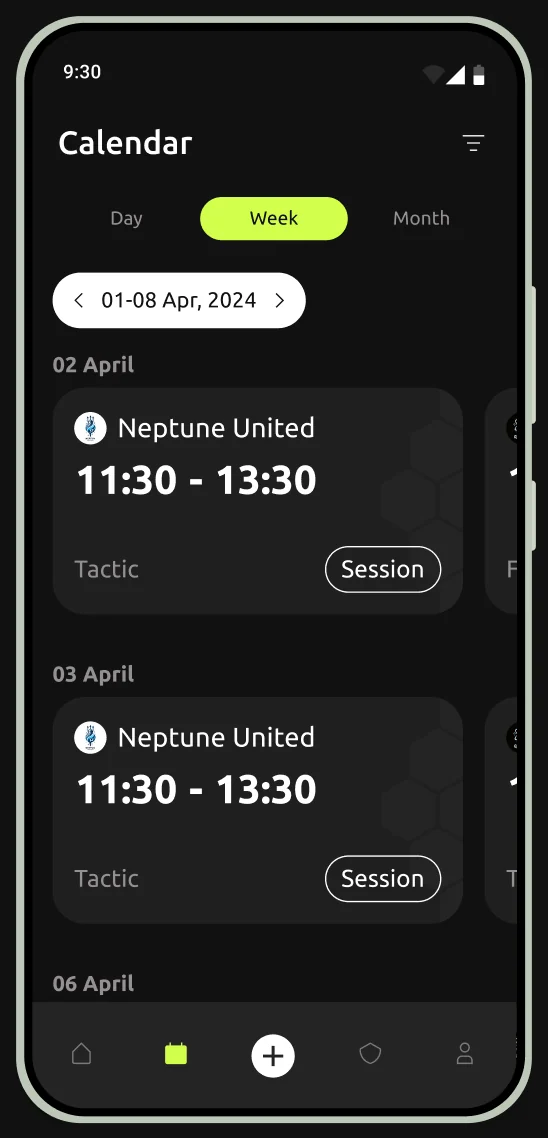
Calendar, week view: sessions for 1–8 April grouped by day

Weekly view

The week for every team.

Calendar, month view: April with small coloured marks on the days that have events

Monthly view

The month ahead, for longer planning.

New session

Step 1

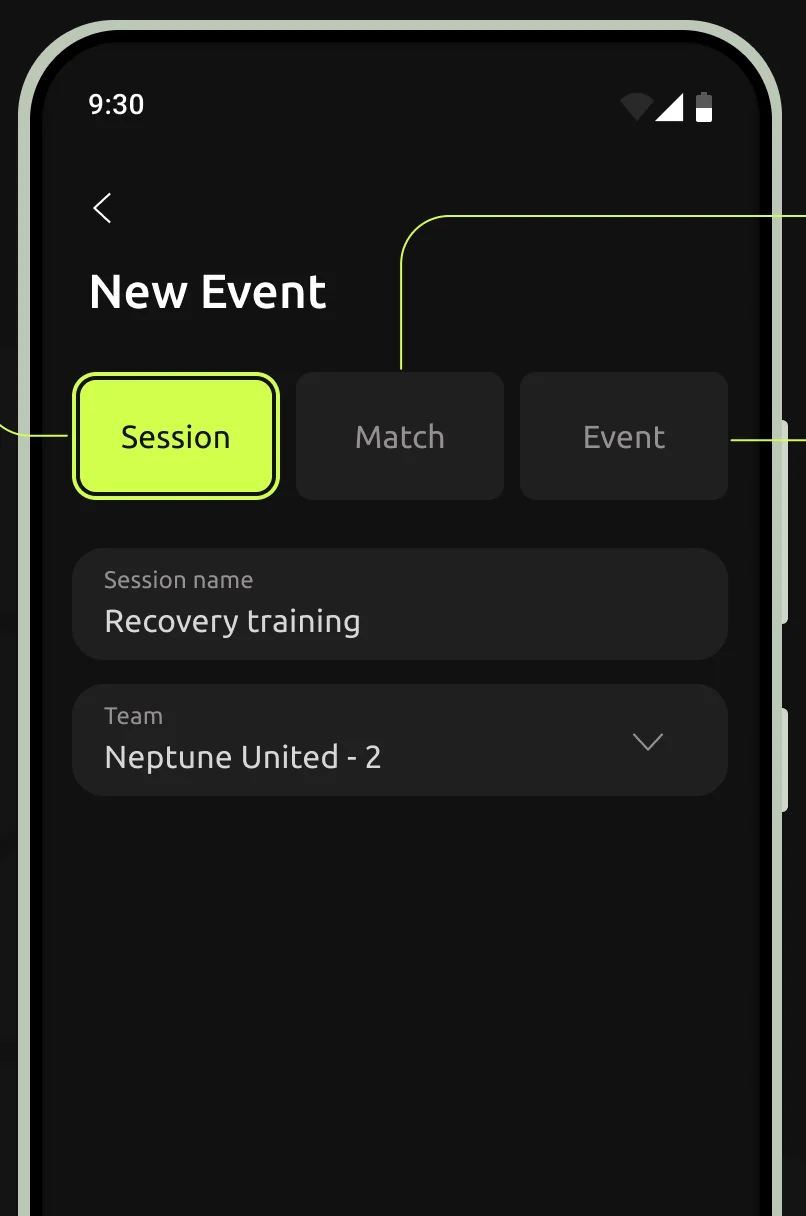
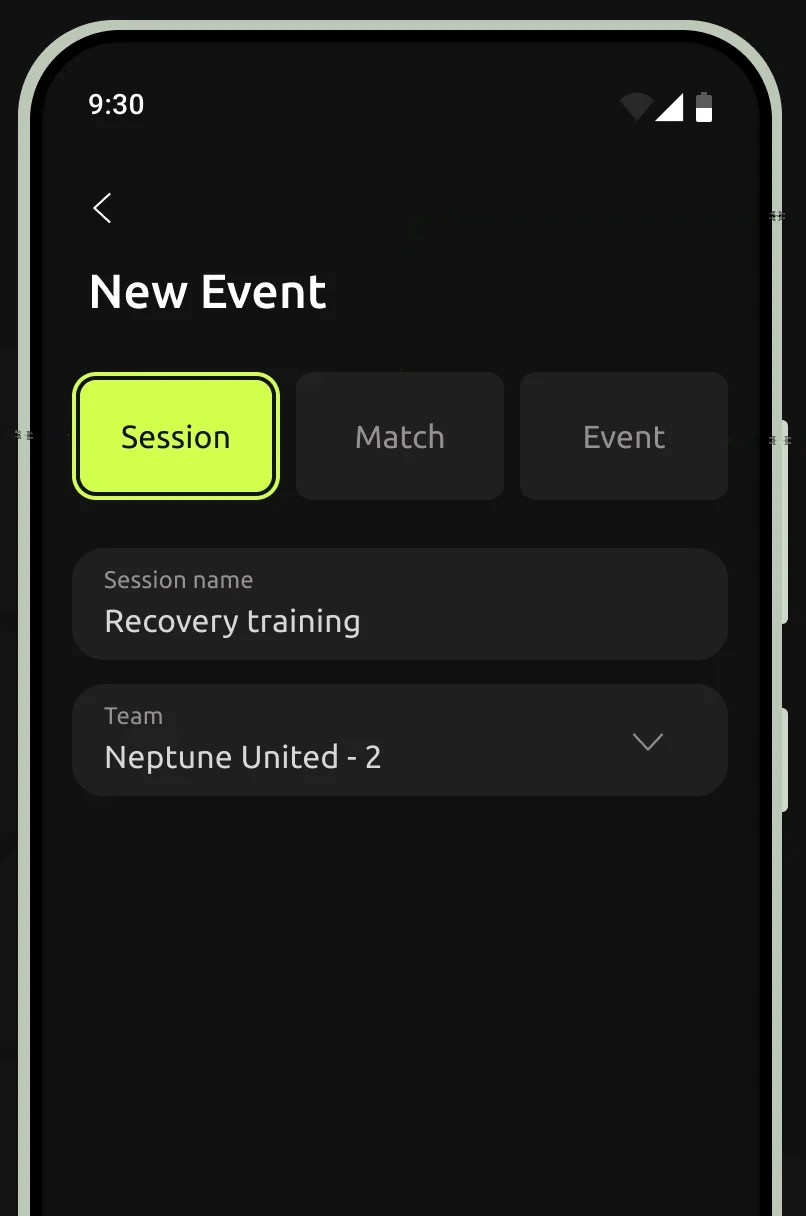
The New Event screen: Session is selected among Session, Match and Event; below are the session name and the team The New Event screen: Session is selected among Session, Match and Event; below are the session name and the team

Session

A training session, with its focus and drills.

Match

A match, with the opponent, venue and time.

Event

Anything else: a team meeting or a get-together.

New session, step 2

Step 2

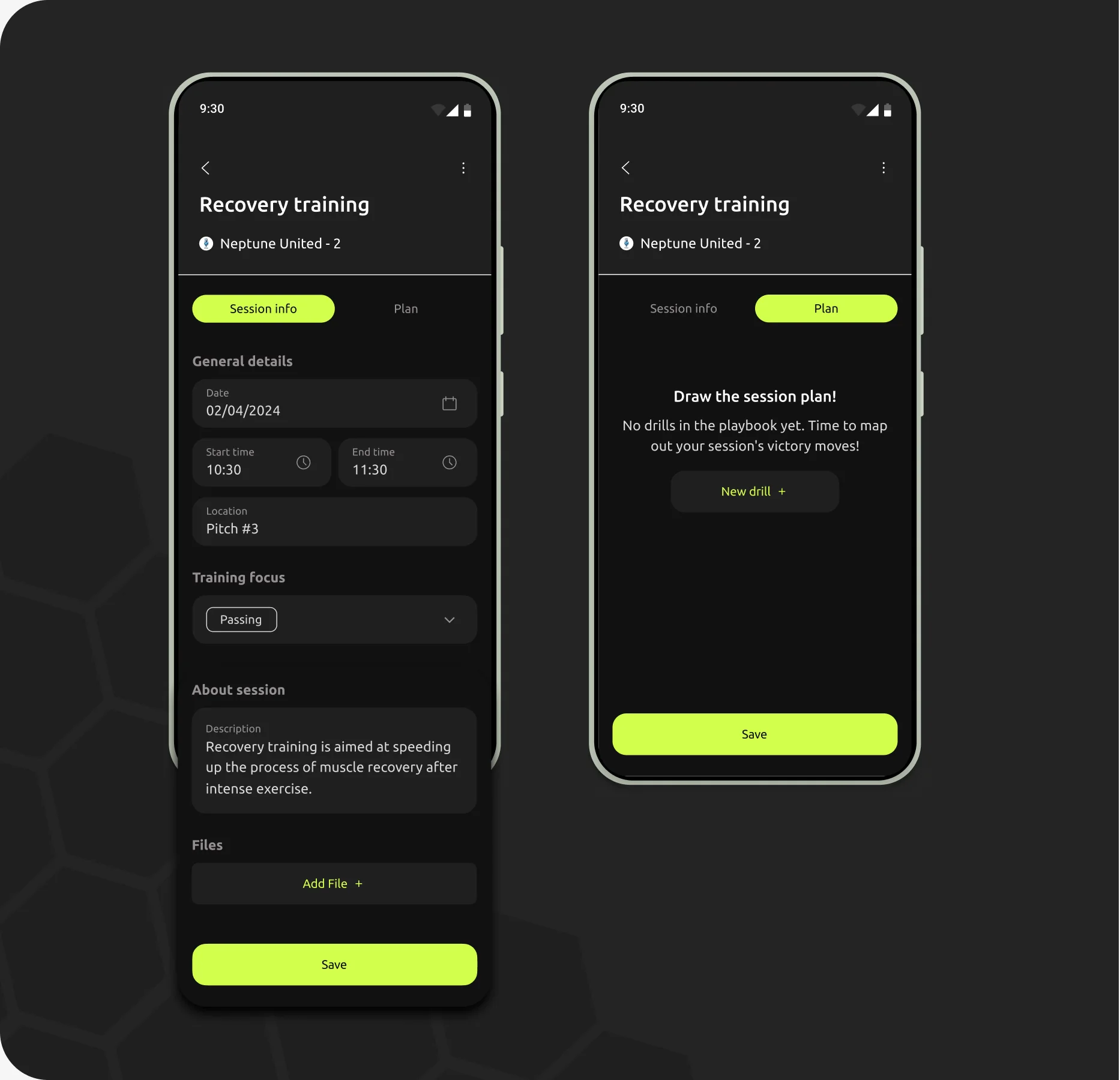
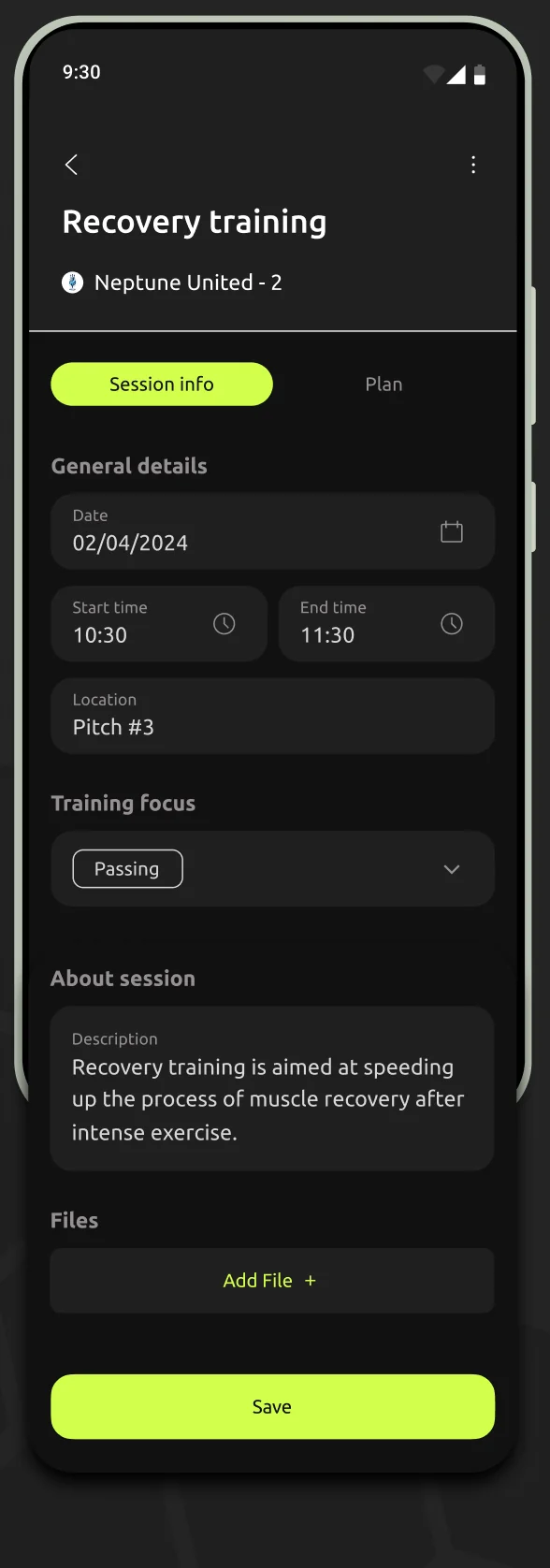
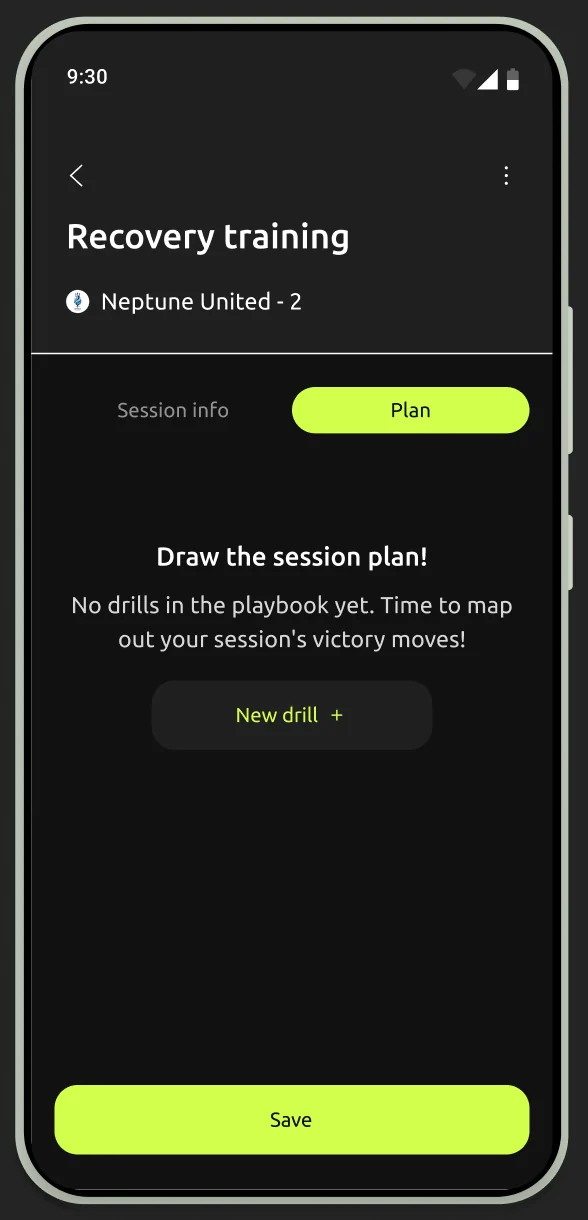
Two screens of a new session. Session info: date, start and end time, location Pitch #3, training focus Passing, a description and files. Plan: no drills yet and a New drill button Session info tab: date, start and end time, location Pitch #3, training focus Passing, a description and files Plan tab with no drills yet and a New drill button

Session Info

Date, time, pitch and the focus of the session.

Plan

The drills for the session, each with a description.

Filled in

Fields the team always uses are filled in. The usual pitch, for example, is already selected.

New session, step 2.1

Step 2.1

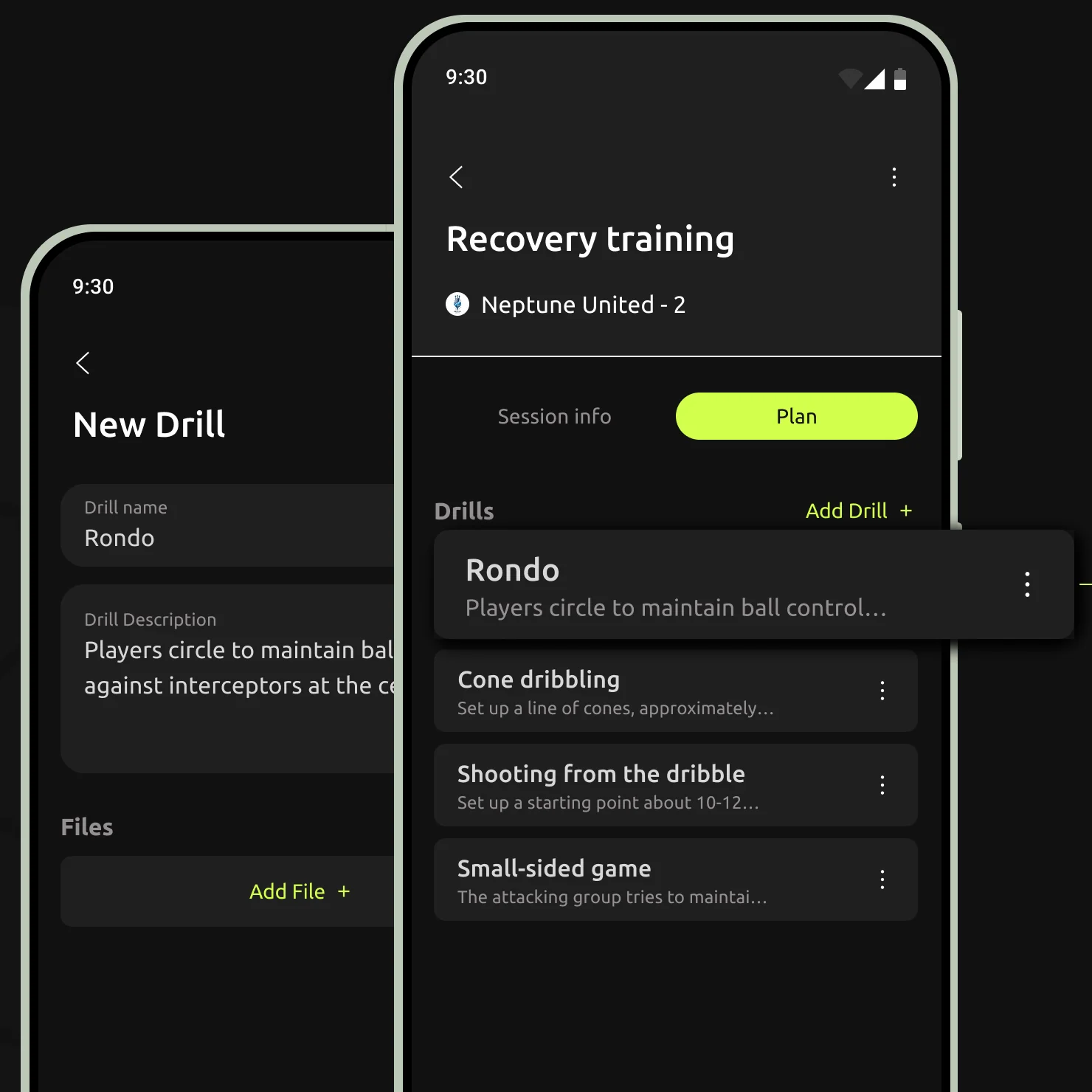
The New Drill form with name Rondo and its description, next to the session plan where Rondo is the first of four drills The New Drill form with name Rondo and its description, next to the session plan where Rondo is the first of four drills

Drill

A drill has a name, a short description and, if needed, a video or a photo.

Session saved

The coach can now view the added session
on the team's schedule, ready
for upcoming training preparations.
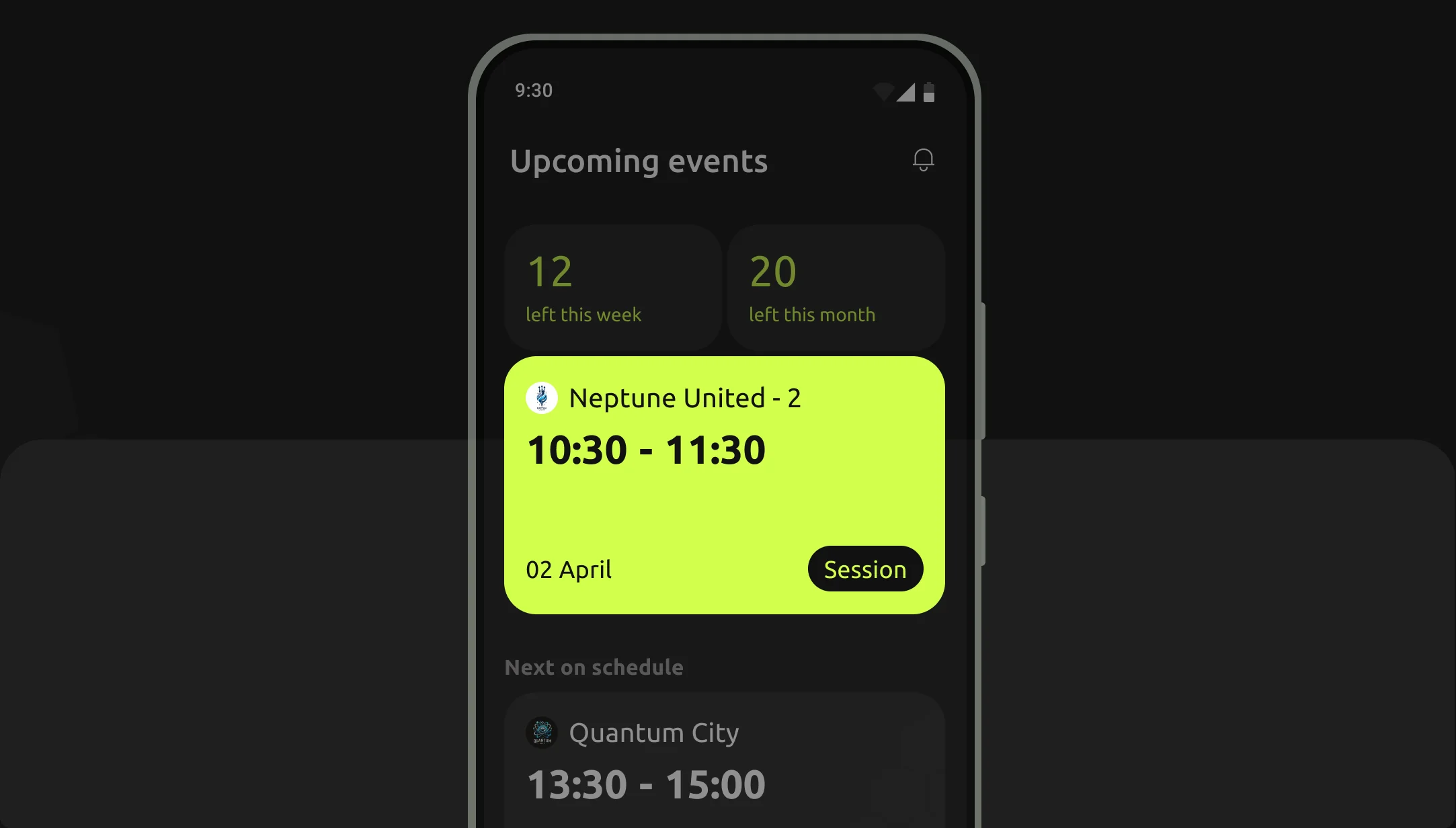
Upcoming events: the new Neptune United - 2 session, 10:30 to 11:30 on 2 April, is the first card on the schedule

Prototype

The flow from the slides above, clickable. Start on the schedule, create a session, pick its pitch and focus, add a drill to the plan and save it.

9:30
Upcoming events
1112left this week
1920left this month

Quantum City

13:30 - 15:00

02 AprilSession

Neptune United - 2

10:30 - 11:30

02 AprilSession

Next on schedule

Quantum City

13:30 - 15:00

02 AprilSession

Quantum City - 2

16:30 - 17:30

02 AprilMatch

Neptune United

19:30 - 20:30

02 AprilSession

The session is saved and scheduled!
9:30
New Event
Session nameRecovery training
TeamNeptune United - 2
Team
Opponent team
9:30
Recovery training

Neptune United - 2

General details

Date02/04/2024
Start time10:30
End time11:30

Training focus

About session

Description

Files

9:30
Recovery training

Neptune United - 2

Draw the session plan!

No drills in the playbook yet. Time to map out your session's victory moves!

9:30
New Drill
Drill nameRondo
Drill DescriptionPlayers circle to maintain ball control against interceptors at the center.

Files

9:30
Recovery training

Neptune United - 2

Drills
  • RondoPlayers circle to maintain ball control against interceptors at the center.
  • Cone dribblingSet up a line of cones, approximately 2 feet apart. Players dribble the ball through the cones using quick, controlled touches.
  • Shooting from the dribbleSet up a starting point about 10-12 meters from the goal. Players dribble towards the goal at speed and then take a shot on goal.
  • Small-sided gameThe attacking group tries to maintain possession and score, while the defensive group focuses on maintaining their shape.
9:30
Edit attendance

Recovery training02 April, 2024

Quantum CityPitch #3+13 °C

  • Aiden ByrneGoalkeeper
  • Ethan DuboisGoalkeeper
  • Lei WangRight back
  • Matteo RossiCenter back
  • Santiago TorresCenter back
  • Felipe CastroForward
  • Santiago TorresCenter back
  • Miguel AndradoForward

Absent

  • Alexei IvanovCenter Midfielder
  • Maximilian BauerCenter Midfielder
  • Samuel OkekeRight Midfielder
  • Youssef AmraniForward
  • Liam MurphyLeft Midfielder
9:30
Recovery training

02 April, 202413:30 - 15:00

Quantum CityPitch #3+13 °C

Training Focus

Passing

About session

Recovery training is aimed at speeding up the process of muscle recovery after intense exercise. Includes light aerobic exercise, stretching, yoga and massage. Helps reduce muscle fatigue and prevent injury.

Files

  • Lineup.jpegLineup for the 1 team
  • Lineup2.jpegLineup for the 2 team
9:30
Calendar
02 April, 2024

Quantum City - 2

16:30 - 17:30

02 AprilMatch

Neptune United

19:30 - 20:30

02 AprilSession

9:30
Neptune United
17players
73%avg. attendance

About team

Address
15A Hyde Park Gate
Age group
12 years old
9:30
Players

Neptune United

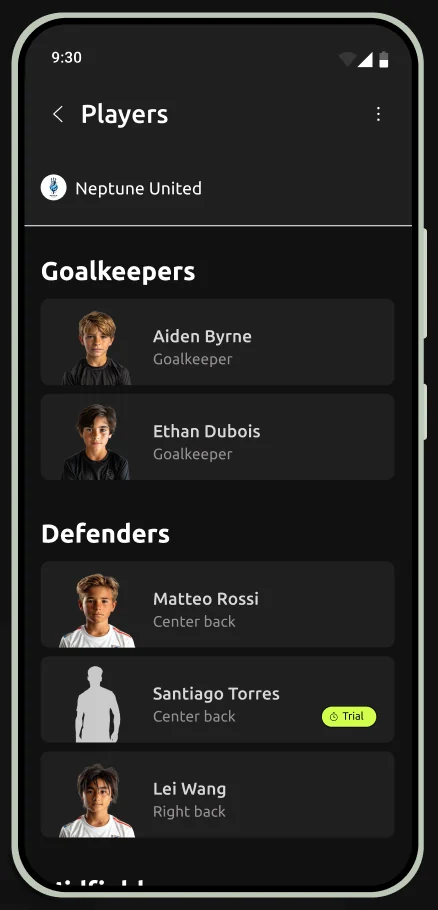
Goalkeepers

  • Aiden ByrneGoalkeeper
  • Ethan DuboisGoalkeeper

Defenders

  • Santiago TorresCenter backTrial
  • Lei WangRight back

Midfielders

  • Alexei IvanovCenter Midfielder
  • Maximilian BauerCenter Midfielder
  • Samuel OkekeRight Midfielder
  • Liam MurphyLeft Midfielder

Forwards

  • Felipe CastroForward
  • Youssef AmraniForward
9:30
Attendance

Neptune United

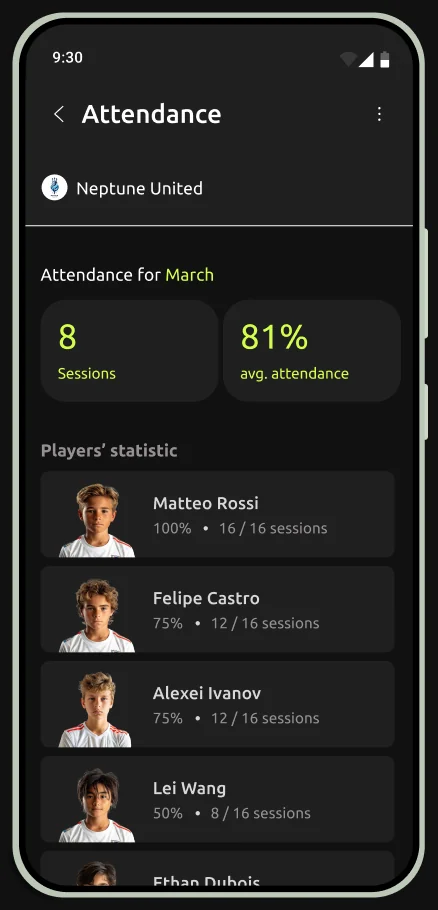
Attendance for March

8Sessions
81%avg. attendance

Players’ statistic

  • Matteo Rossi100%16 / 16 sessions
  • Felipe Castro75%12 / 16 sessions
  • Alexei Ivanov75%12 / 16 sessions
  • Lei Wang50%8 / 16 sessions
  • Ethan Dubois50%8 / 16 sessions
  • Youssef Amrani0%0 / 16 sessions

Tap + at the bottom of the phone to create a session. Cards, tabs and the bottom bar open the rest of the app.

  1. Event type

    A session, a match or an event, its name and the team.

  2. Session info

    Date, time, pitch and the focus of the session.

  3. Plan

    The drills for the session, each with a description.

  4. Drill

    A drill has a name, a short description and, if needed, a video or a photo.

  5. Session saved

    The session is on the team’s schedule, with a message that it’s saved.

Teams & attendance
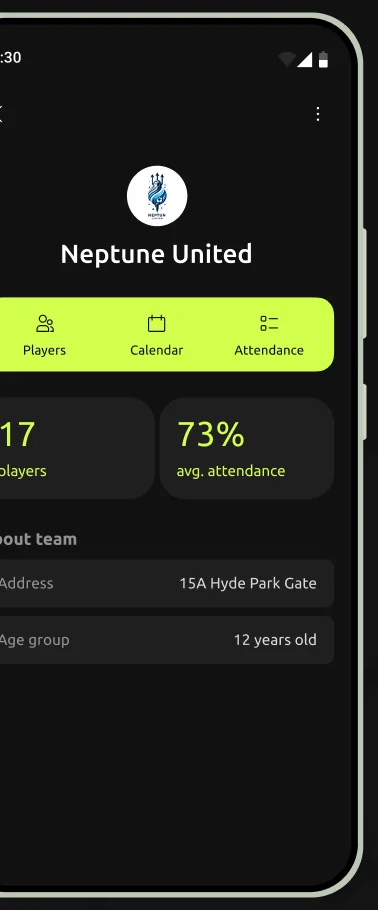
The team Neptune United: 17 players, 73% average attendance and the team's details Players grouped by position: goalkeepers and defenders A player's card: Matteo Rossi, centre back, number 5, with birthday, phone, email and the date he joined Attendance for March: 8 sessions, 81% average, and each player's share of sessions

Edit attendance

9:30
Edit attendance

Recovery training02 April, 2024

Quantum CityPitch #3+13 °C

  • Aiden ByrneGoalkeeper
  • Ethan DuboisGoalkeeper
  • Lei WangRight back
  • Matteo RossiCenter back
  • Santiago TorresCenter back
  • Felipe CastroForward
  • Santiago TorresCenter back
  • Miguel AndradoForward

Absent

  • Alexei IvanovCenter Midfielder
  • Maximilian BauerCenter Midfielder
  • Samuel OkekeRight Midfielder
  • Youssef AmraniForward
  • Liam MurphyLeft Midfielder

Tick the players who came.

The Recovery training session: Session info tab with training focus Passing, a description and two lineup files

How I’d measure success

  • Retention

    Do coaches keep using it after the first weeks?

  • Feature use

    How often sessions are planned and attendance is ticked.

  • Satisfaction

    NPS and short surveys.

  • Engagement

    Daily and monthly active coaches, and how long they stay.

  • Task success

    The share of tasks done without errors, like the 82% in testing.

Takeaways

  1. 01

    Scope comes after the interviews

    I started with a calendar; seven interviews added session plans and attendance. I keep the feature list open until the first round of interviews is done.

  2. 02

    Test what a symbol means, not only the task

    The attendance squares looked clear to me and confused coaches in several interviews. A short "what does this mean?" question catches this before it becomes part of the UI kit.

  3. 03

    Every pain point needs an answer in the flow

    The journey map showed coaches weren't sure a session was saved. That became the "Session ready" screen and the confirmation message. I go through the barriers row of a journey map and check that each one is answered somewhere.

  4. 04

    Look at who failed, not the average

    82% found the next session on the first try. The other 18% are the useful part: next time I'd ask them what they expected to see.